The window: canvas, docks and views
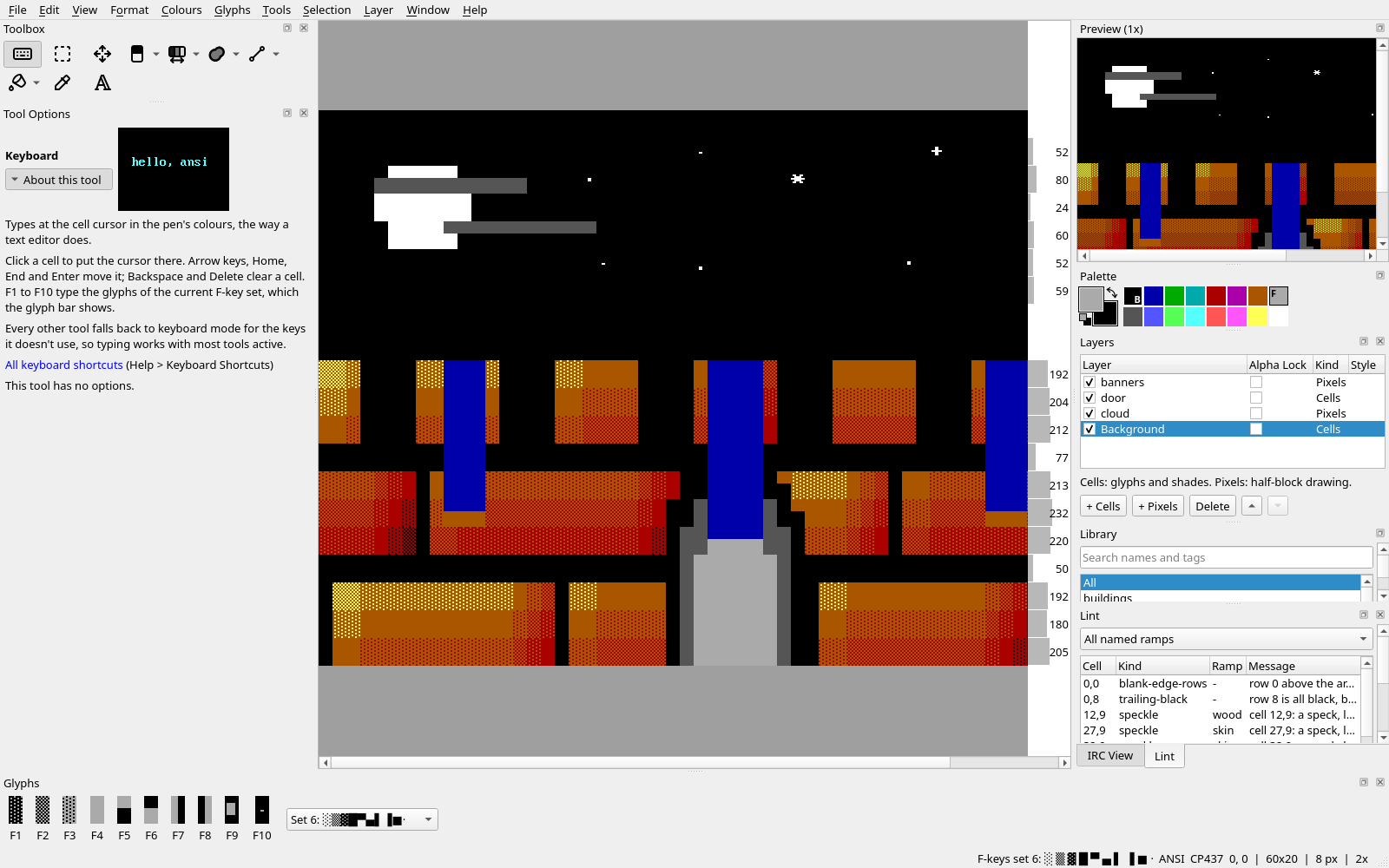
Blockwright's window is the canvas in the middle with docks around it: the tools on the left, the 1× preview, the palette and the other panels on the right, and the F-key glyphs along the bottom. This page says what each part is, how to move them, and what the View menu changes.
Starting up
Blockwright opens on the start screen when it starts with no file or project named on the command line. The main window comes up when the start screen closes, whichever way it closes; closing it without picking anything leaves a new 80 × 40 canvas on the target set in Preferences.
| Part | What it does |
|---|---|
| New | Width (1 to 400 columns) and Height (1 to 5000 rows) of the new canvas; the 80 × 25, 80 × 40 and 80 × 50 buttons set both. iCE colours (16 background colours, no blink) is ticked to start with. The New button (N or Enter) makes the canvas. |
| Open... | An .ans, XBIN or BIN file, or a .bwp project (O or Ctrl+O). |
| Open Project Directory... | A project saved as a directory. |
| Recent | The files opened or saved lately, each with its folder beside the name; a click opens one. A file that is no longer there is greyed out and marked missing, with a Remove button that takes it off the list. With no recent files the list reads Nothing opened or saved yet. |
| Samples | The sample pieces that come with Blockwright, by title, when any are installed; hover over one for what it is. A click opens a copy: untitled, so Save asks where, and kept off the Recent list. Help > Samples lists the same pieces. |
| Show at startup | Untick it to start straight in the main window. |
Starting the size and colours of a canvas from the start screen is in What ANSI art is. File > Start Screen... brings the screen back at any time, and closes the open piece to do it. If the piece has unsaved changes, Blockwright asks first whether to save them; Cancel keeps the piece open and shows no start screen. Closing the screen without picking anything leaves a new, blank 80 × 40 untitled.ans, not the piece that was open. File > New (Ctrl+N) makes an 80 × 40 canvas with iCE colours on without the start screen. Each of these new canvases, and the start screen's New, takes the target set in Preferences, ANSI unless it has been changed.
The canvas
The canvas is in the middle of the window, centred on a grey background when it is smaller than the space for it. The cell cursor, a frame that shows on any colour, marks where keyboard mode types (Keyboard mode, F-key glyph sets and the pen); a click on a cell puts the cursor there.
- Zoom is a whole number from 1× to 8×. A new window starts at 2×.
- Pan with the scroll bars or by dragging with the middle mouse button.
- Move the active layer by dragging with Alt and the left button, whichever tool is active.
- The row meter, beside the canvas, shows each row's size in bytes as an IRC line: a bar as long as the row's share of the IRC byte budget, with the count on it when the row is tall enough to hold it. The bar is red when the row is over the budget and amber when cells were merged to make it fit. Hover over a row for its count against the budget. View > IRC > Row Meter hides and shows it; it starts shown.
The window's title is the file's name (untitled.ans before the first save), with a * while there are unsaved changes.
Canvas Size
Format > Canvas Size... makes the canvas wider, narrower, taller or shorter. It has no shortcut to start with; the Shortcuts tab of Edit > Preferences... (no shortcut) can give it one. It sits at the top of the Format menu, above Target.
| Part | What it does |
|---|---|
| Width | 1 to 400 columns. It starts at the canvas's width. |
| Height | 1 to 5000 rows. It starts at the canvas's height. |
Now 80 × 40 |
The size the canvas has now. |
| Anchor | A 3 × 3 grid of buttons: the corners, the middle of each side and the centre. The one picked is where the old canvas stays in the new one; each button's arrow points to its corner or side, and the centre's is a dot. It starts at top left each time the dialog opens. |
| The summary | What each side gains or loses, such as 2 columns added on the left; 3 columns added on the right, or No change. |
Cut cells can be brought back with Undo. |
A reminder that shrinking can be taken back. |
The top-left anchor keeps every cell at the same column and row: columns come and go on the right, rows at the bottom. The bottom-right anchor puts all the change on the left and at the top. At the centre the change is split between the two sides. When it is an odd number, the extra column goes on the right and the extra row at the bottom, whether they are added or cut: growing an 80-column canvas to 85 at the centre adds 2 columns on the left and 3 on the right.
What happens to each layer (Layers):
- A Cells or Pixels layer exactly the canvas's size and at its top-left corner becomes the new size with it. Cells past the new edges are cut. On the bottom layer, when it is a Cells layer, the new cells are a space, grey on black, the cell File > New (Ctrl+N) fills a canvas with; on any other layer they are transparent. When the new edge cuts through a wide glyph, the half left on the canvas becomes a space with that half's foreground and background.
- Every other layer keeps all its cells and moves with the old canvas: a Cells or Pixels layer of another size or place, and every Text, Generator and Reference layer. Part of such a layer can end up off the canvas, and growing the canvas again shows it. A layer's place is held to the limits of a project's coordinates, about 2.1 billion cells either way, so one already stored that far out moves no further. A Generator layer doesn't run again.
- A Reference layer's picture moves with the old canvas: 8 pixels for each column (9 with 9 px letter spacing) and 16 pixels for each row. Its place is held to 16777216 pixels either way from the canvas's corner, so a picture already that far out moves no further.
Locked and hidden layers change in the same way. The selection moves with the old canvas and is cut to the new one; it is cleared if none of it is left. The cell cursor moves too, and is kept on the canvas.
The whole change is one undo step, named Canvas Size, and Edit > Undo (Ctrl+Z) puts back every cell, every layer's place and the picture's place, along with the selection and cursor. Picking the size the canvas already has does nothing and adds no step.
Blockwright refuses a size, and says why in a message box starting The canvas can't be made that size:, when the layers would then hold more than 16000000 cells between them (the layers would hold over 16000000 cells) or when it couldn't draw a canvas that big (the canvas is too large to display). A 400 × 5000 canvas can be drawn with 8-pixel cells but not with 9 px letter spacing. A refused size changes nothing.
A floating selection is put down before the dialog opens. One that can't land stops it there: no dialog opens, and the status bar says Canvas size not changed: the floating selection can't land: and why (A float that can't land).
An .ans saved after a resize has the new size, and so do its SAUCE width and height. The CLI has no command of its own to resize a canvas; a steps file's canvasSize step makes the same change (Resizing the canvas).
The status bar
The status bar along the bottom of the window shows, from the left:
- The tool, such as
Glyph ░: what the active tool is set to, for the tools that say; nothing for the others. - The glyph set, such as
F-keys set 6: ░ ▒ ▓ █ ▀ ▄ ▌ ▐ ■ ·: the set the F-keys type now. Its tooltip lists the keys. - The target and the encoding:
ANSIorIRC, what the document is made for (Format > Target), andCP437orUTF-8, how its.ansis written. A new document takes the target set in Preferences. - The position, such as
12, 3 | 80x40 | 8 px | 2x: the cell cursor's column and row (0, 0 is the top-left cell), the canvas's width and height in cells, the cell width in pixels (8, or 9 with 9 px letter spacing), and the zoom.

Short messages show at its left for a few seconds, such as a key whose character can't be typed (Which keys type). While the pointer is on a menu item, the left of the status bar says what the item does; the files listed under File > Open Recent say nothing there.
Docks
Each panel around the canvas is a dock: drag its title bar to move it to another side of the window, onto another dock to share its place as a tab, or off the window to float it. Drag the separator between the canvas and a column of docks to make the column wider or narrower.
| Dock | Starts | What it shows | Can close |
|---|---|---|---|
| Toolbox | Left, top | A button for each tool or group of tools in the Tools menu, with the same shortcuts. | Yes |
| Tool Options | Left, under the Toolbox | The settings of the active tool, under the tool's name. | Yes |
| Preview (1x) | Right, top | The whole canvas at 1×, as it looks at its real size. | No |
| Palette | Right | The 16 colours and the pen (Palette, iCE colours and 24-bit colour); under the IRC target, mIRC's 99 colours and the pen's B, I and U toggles (The pen). | No |
| Layers | Right | The layer stack of the canvas. | Yes |
| Library | Right | The stamps and text styles of the library, as thumbnails with a category list and a search box. | No |
| Lint | Right, bottom, in front | The lint's findings for the canvas, one a row; activating a row puts the cell cursor on its cell. | Yes |
| IRC View | Right, bottom, behind Lint | The canvas as an IRC client shows the exported lines, with a red bar where a line over the budget is cut. | Yes |
| Glyphs | Bottom | The current F-key set as ten cells and a list of the sets the document offers (Keyboard mode, F-key glyph sets and the pen). | Yes |
Lint and IRC View share a place as two tabs; the one at the back updates when it comes to the front.
The Window menu
The Window menu has a checkable item for each dock, in the order of the table above. Untick one to close the dock, tick it to bring it back. The Preview, Palette and Library docks can't be closed: their items are always ticked and greyed out.
Window > Reset Layout puts every dock back where it starts: the left column 360 pixels wide with the Toolbox over Tool Options, the right column 360 pixels wide, and the Glyphs dock along the bottom. The canvas keeps at least 640 pixels of width; on a small screen the columns give way first.
Blockwright saves the window's size and place and the docks' layout when the window closes, and puts them back on the next start.
Views
The View menu:
| Item | Shortcut | What it does |
|---|---|---|
| Zoom In | Ctrl+= or Ctrl++ | One step larger, up to 8×. |
| Zoom Out | Ctrl+- | One step smaller, down to 1×. |
| Actual Size | Ctrl+0 | 1×. |
| iCE Colours | Bright backgrounds as 16 colours; off, they blink (iCE colours). Saved in the file. | |
| 9 px Letter Spacing | Cells 9 pixels wide instead of 8, with the line-drawing glyphs 0xC0–0xDF joined across the ninth column as a VGA screen joined them. Saved in the file's SAUCE record. | |
| IRC > Row Meter | Shows or hides the row meter beside the canvas. | |
| IRC > IRC View | Shows or hides the IRC View dock. | |
| Guides | None, 80x25, 80x40 or 80x50: a line after column 80 and after every 25, 40 or 50 rows. |
The zoom changes the canvas only; the Preview dock always shows 1×. A canvas too wide or too tall to draw at 9 pixels a cell stays at 8, and the status bar says so.
Guides are drawn over the canvas while you work and never saved. They show where a piece would break across 80 × 25, 80 × 40 or 80 × 50 screens.
The View > IRC submenu also has Budget..., Fit Lines to the Budget, Pad Lines and Swap Shades, which are about IRC export.
Help on the window itself
Help > What's This? (Shift+F1) turns the pointer into a question mark: click any part of the window to be told what it does. Esc leaves the mode. A tool's button shows the tool's whole help. Help > Keyboard Shortcuts... lists every action that has a key, with a search field. Help > Manual... opens the Blockwright Manual window, which needs no network: a section for each tool in the Tools menu's order, with its key, a picture of it at work and its help, then one for each kind of layer. Its Keyboard Shortcuts... button opens the shortcuts list.
Describes Blockwright 0.1.0 (12ee9ef).