Keyboard mode, F-key glyph sets and the pen
Keyboard mode types on the canvas the way a text editor types on a page: a key puts a glyph in the cell under the cursor and moves the cursor on. The F-keys type the block, shade and line glyphs that aren't on a keyboard, from 21 sets you switch between (16 in a CP437 document under the ANSI target). Everything typed is drawn in the pen's two colours.
What ANSI art is types its first word this way.
Keyboard mode
Tools > Keyboard (Ctrl+K) is the tool Blockwright starts with. Keys type in every other tool too, unless the tool uses the key itself: the select tool takes the arrows, Enter, Esc and Delete while there is a selection, the glyph brush takes the F-keys to pick its glyph, and the text tool types into its own text layer.
Click a cell to put the cursor there. The cursor is a frame around one cell (both cells of a wide character), drawn so it shows on any colour.
Keys
| Key | What it does |
|---|---|
| A letter, digit or other character | Puts that glyph in the cell, in the pen's colours, and moves the cursor one cell right. |
| F1 to F10 | Puts the current glyph set's glyph for that key in the cell, and moves right (see below). Shift+F2 to Shift+F10 do the same. |
| ← → ↑ ↓ | Move the cursor one cell. It stops at the canvas's edges. |
| Home / End | To the first or the last column of the row. |
| Enter | To the first column of the next row (it stays on the last row at the bottom). |
| Backspace | Moves the cursor one cell left and clears that cell. On the first column it does nothing. |
| Delete | Clears the cell under the cursor; the cursor stays. |
A cleared cell is a space in grey on black on the bottom layer, and transparent on any other layer. A pixels layer is the exception: a cell cleared on one is transparent even when it is the bottom layer.
Typing on the last column leaves the cursor on it, past the glyph just typed. Backspace then clears that last cell rather than the one to its left. Any move of the cursor ends this.
Each key is one step on the undo stack: Edit > Undo takes back one glyph at a time.
Which keys type
A key types when it gives a printable character, unless Ctrl (or Meta) is held without Alt: those chords are shortcuts, such as Ctrl+↑ for the pen below. So characters made with AltGr, or with Option on a Mac, type, and so does text from an input method.
What a key can type depends on the document. In a CP437 document under the ANSI target, a cell can hold only a glyph CP437 has. Accented letters made of a letter and a combining accent are joined first, so e followed by a combining acute types é, which CP437 has. A character with no CP437 glyph, such as € or an emoji, is not typed, and the status bar says so for a few seconds, naming the target and the encoding: € has no CP437 code; not typed (target: ANSI, CP437). When an input method sends several characters at once and any of them can't be typed, none of them is.
Five CP437 glyphs can't be typed there either: ○ ◙ ♪ → ←. Their bytes, 9, 10, 13, 26 and 27, are tab, line feed, carriage return, end of file and escape, which a reader of an .ans file acts on rather than draws, so the file can't hold them as glyphs. The status bar names the byte and what a reader takes it for: → is CP437 0x1A, which .ans reads as SUB; not typed (target: ANSI, CP437).
Under the IRC target, and in a UTF-8 document under either target (the documents that offer sets 17 to 21), a key types any character but a control code: €, the five glyphs above and wide characters such as 中 all type. A wide character takes two cells and moves the cursor two; on the last column it isn't typed, and the status bar says 中 would start on the last column; dropped. Backspace and Delete clear both of its cells. A combining accent typed on its own joins the character just left of the cursor.
Where the glyphs go
Typing goes into the active layer. On a layer that is hidden or locked, a generator layer, a reference layer or a live text layer, nothing is typed. A pixels layer holds only spaces and the blocks █ ▀ ▄, so any other glyph typed on one doesn't land.
With Edit > Mirror Mode (Ctrl+M) on and Edit > Symmetry > Mirror X picked, every glyph typed is also put in the mirrored column across the canvas's centre, flipped left to right, so ┌ on the left gives ┐ on the right. The other symmetry modes don't repeat typing (Mirror mode and symmetry).
The F-key glyph sets
F1 to F10 type the ten glyphs of the current glyph set. There are 21. Sets 1 to 16, the ones Moebius and PabloDraw have, are offered in every document; sets 17 to 21 hold glyphs CP437 doesn't have and are offered only in IRC and UTF-8 documents (Sets 17 to 21). Set 6, the shades and half blocks, is the default. Blockwright starts on the set last picked, and on set 6 the first time or when the set last picked is one the document doesn't offer:
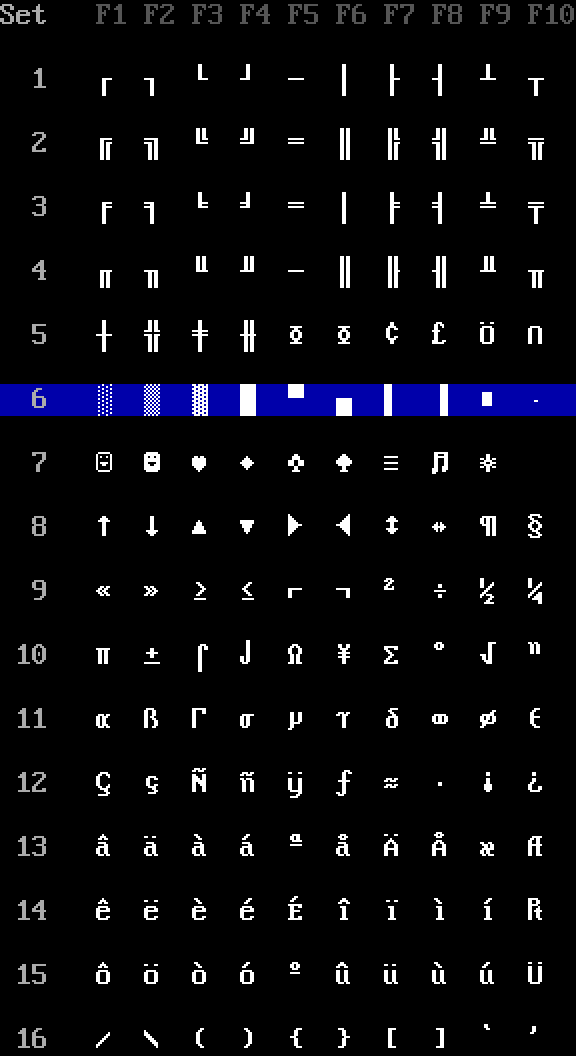
| Set | F1 to F10 |
|---|---|
| 1 | ┌ ┐ └ ┘ ─ │ ├ ┤ ┴ ┬ |
| 2 | ╔ ╗ ╚ ╝ ═ ║ ╠ ╣ ╩ ╦ |
| 3 | ╒ ╕ ╘ ╛ ═ │ ╞ ╡ ╧ ╤ |
| 4 | ╓ ╖ ╙ ╜ ─ ║ ╟ ╢ ╨ ╥ |
| 5 | ┼ ╬ ╪ ╫ Φ Φ ¢ £ Ö ∩ |
| 6 | ░ ▒ ▓ █ ▀ ▄ ▌ ▐ ■ · |
| 7 | ☺ ☻ ♥ ♦ ♣ ♠ ≡ ♫ ☼, and a space on F10 |
| 8 | ↑ ↓ ▲ ▼ ► ◄ ↕ ↔ ¶ § |
| 9 | « » ≥ ≤ ⌐ ¬ ² ÷ ½ ¼ |
| 10 | π ± ⌠ ⌡ Ω ¥ Σ ° √ ⁿ |
| 11 | α ß Γ σ µ τ δ ∞ φ ε |
| 12 | Ç ç Ñ ñ ÿ ƒ ≈ ∙ ¡ ¿ |
| 13 | â ä à á ª å Ä Å æ Æ |
| 14 | ê ë è é É î ï ì í ₧ |
| 15 | ô ö ò ó º û ü ù ú Ü |
| 16 | / \ ( ) { } [ ] ` ' |
| 17 | ▖ ▗ ▘ ▝ ▚ ▞ ▙ ▛ ▜ ▟ |
| 18 | ▁ ▂ ▃ ▄ ▅ ▆ ▇ █ ▔ ▕ |
| 19 | ▏ ▎ ▍ ▌ ▋ ▊ ▉ █ ▐ ▕ |
| 20 | ◢ ◣ ◤ ◥ ◆ ◇ ○ ● ★ ☆ |
| 21 | ✦ ✧ ✶ ✷ ✸ ✹ ⋆ ✱ ✺ ❖ |
Changing the set
| Key or item | What it does |
|---|---|
| Glyphs > Previous Set, Ctrl+, | The set before; from set 1 it goes round to the last set the document offers, 16, or 21 in an IRC or UTF-8 document. |
| Glyphs > Next Set, Ctrl+. | The set after; from the last set the document offers it goes round to set 1. |
| Glyphs > Default Set, Ctrl+/ | Back to set 6. |
| Ctrl+Shift+F1 to Ctrl+Shift+F10 | Sets 1 to 10. |
| Glyphs > Set 1 to Set 21 | Any set the document offers; each item shows its ten glyphs, and the current one is ticked. Sets 17 to 21 are in the menu only in IRC and UTF-8 documents. |
Sets 11 to 21 have no key of their own: pick them from the Glyphs menu or the Glyphs dock, or step to them. To give a set a key, select it on the Shortcuts tab of Edit > Preferences... (no shortcut by default; on macOS it is in the application menu), where the sets are listed under Glyphs.
Sets 17 to 21
Sets 17 to 21 are offered in a document under the IRC target (Format > Target > IRC, no shortcut) and in a UTF-8 document, such as one read from or saved as a UTF-8 .ans, under either target. In a CP437 document under the ANSI target, the only other kind, the Glyphs menu, the Glyphs dock's list and stepping leave them out, and the status bar's tooltip names only the keys of the sets offered. If the set in use is one of them when the document stops offering it, the F-keys type set 6.
They can still be given a key in any document. The Shortcuts tab lists them under Glyphs in every document; in one that hides them, each row ends "(hidden: offered only in IRC and UTF-8 documents)", in grey (set 21's reads "Set 21: ✦✧✶✷✸✹⋆✱✺❖ (hidden: offered only in IRC and UTF-8 documents)"), and its tooltip adds "Hidden in this document: offered only in IRC and UTF-8 documents. A key given to it is kept, and works there." In a document that hides the set the key does nothing. A key counts as taken whether or not the action that has it is shown: a key one of these sets has is refused for any other action, with "… is already the key for …", and a key another action has is refused for one of these sets. Help > Keyboard Shortcuts... (no shortcut) lists a hidden set that has a key, with the same note in its tooltip, and blockwright --list-actions lists all five after set 16, each with "offeredWhen": "in IRC and UTF-8 documents".
Set 21 holds sparkles, stars and asterisks no other set has: ✦ ✧ ✶ ✷ ✸ ✹ ⋆ ✱ ✺ ❖. With it picked the status bar reads F-keys set 21: ✦ ✧ ✶ ✷ ✸ ✹ ⋆ ✱ ✺ ❖, and the Glyphs menu and the Glyphs dock's list call it Set 21: ✦✧✶✷✸✹⋆✱✺❖. Unifont, the font the editor draws them with, has all but ⋆ 16 pixels wide, so the editor squeezes those into one cell, as it does ★ and ☆; an IRC client draws each in one column in its own font. Like 11 to 20 it has no key until you give it one. In an IRC or UTF-8 document Next Set steps from 20 to 21 and from 21 round to 1, and Previous Set from 1 to 21.
Moebius picks sets with Alt+F-keys. Blockwright doesn't, because the desktop takes many of those keys before an editor sees them (Alt+F4 closes the window), and leaves Ctrl+F-keys and Ctrl+Alt+F-keys alone for the same reason. On a Mac the Ctrl keys on this page are Cmd.
Shift+F1 is Help > What's This?, not a glyph; F1 on its own types. F11 and F12 type nothing.
Seeing the set
- The status bar shows the current set and its glyphs:
F-keys set 6: ░ ▒ ▓ █ ▀ ▄ ▌ ▐ ■ ·. Its tooltip lists each F-key with its glyph and the keys that change the set. - The Glyphs dock, along the bottom of the window, shows the set as ten cells, with a list of the sets the document offers beside them. Clicking a cell does what its F-key does with the active tool: in keyboard mode it types the glyph, with the glyph brush it picks the brush's glyph. Picking a set from the list changes the set.
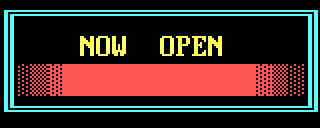
Here is a sign typed in keyboard mode. The frame is set 2 (F1 ╔, F5 ═, F2 ╗, F6 ║, F3 ╚, F4 ╝) in light cyan; the bar is set 6 (F1 ░, F2 ▒, F3 ▓, F4 █) in light red; the words are letters in yellow:
The pen
The pen is the two colours everything is drawn in: a foreground for the glyph and a background for the rest of the cell. Keyboard mode types in both, and the drawing tools use them too. Blockwright starts with the two colours last picked for the pen, and with grey on black the first time.
| Key or item | What it does |
|---|---|
| Left click on a colour in the Palette dock | Makes it the foreground. |
| Right click on a colour in the Palette dock | Makes it the background. |
| Colours > Previous Foreground, Ctrl+↑ | The colour before the foreground (from 0, black, round to 15, white; under the IRC target, round to 98). |
| Colours > Next Foreground, Ctrl+↓ | The colour after the foreground (from 15 round to 0; under the IRC target, from 15 on to 16 and from 98 round to 0). |
| Colours > Previous Background, Ctrl+← | The colour before the background. |
| Colours > Next Background, Ctrl+→ | The colour after the background. |
| Colours > Default Colours, Ctrl+D | Grey on black, with no bold, italic or underline. |
| Colours > Swap Colours | Swaps the foreground and the background. It has no key; give it one in Edit > Preferences... > Shortcuts. |
| Tools > Eyedropper, Ctrl+I | On a half-block pixel, a left click makes the pixel's colour the foreground and a right click makes it the background. On any other cell, a left click takes the cell's foreground and a right click its background. |
Under the IRC target the pen also has bold, italic and underline: the B, I and U toggles under the Palette dock's colours. Typing writes them with the colours, except on a Pixels layer, and Swap Colours leaves them as they are. Under the ANSI target the toggles are hidden and typing writes none.
The colours are numbered 0 to 15, in the order the Palette dock shows them; under the IRC target the dock shows mIRC's 99, 0 to 98, and the Ctrl+arrow keys step through all of them. The Palette dock, its pen swatches and what the colours look like are on Palette, iCE colours and 24-bit colour.
Describes Blockwright 0.1.0 (12ee9ef).