The Library: stamps, Save to Library and text styles
The Library holds stamps: parts of a picture kept as files, ready to place on the canvas, and the text styles the Text tool and Layer Style use. Some come with Blockwright, in the bundled library; the ones you save go in your own, the user library. This page covers the Library dock, placing a stamp, frames and bands that resize, Save to Library, keeping your own stamps in categories of your own, where the files are kept and the limits.
Tutorial 08, Composing a scene, places parts with the Select tool and ends with the Library.
Prefabs, parts made of several layers, and the Scene Starter, which lays out a scene from the Library in one go, aren't in the app yet.
Where it is
| Item | Where | Shortcut |
|---|---|---|
| The Library dock | The right-hand dock column, below Layers; Window > Library | none |
| Save to Library... | Selection | none |
| Save as Frame Style... | Selection | none |
| Save as Preset... | The Layer Style dialog (Layer > Layer Style…) | none |
library list, library check |
blockwright-cli (CLI) |
The Library dock can be moved and floated but not closed, so its Window menu item is always ticked and greyed out (The Window menu). Window > Reset Layout puts it back.
File > Publish to Library... is something else: it publishes the piece to an IRC art library folder, not to this Library.
The Library dock
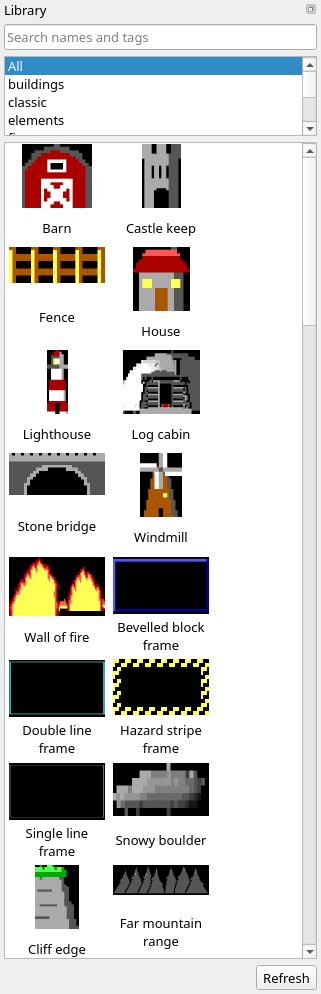
From the top:
| Part | What it does |
|---|---|
| Search box | Shows only the items whose name or tags hold every word you type, in any order. A word can be part of a name or tag: pin finds pine. Upper and lower case are the same for A to Z. The category isn't searched. The × in the box clears it. |
| Category list | All, then each category once, from the stamps and the text styles, in byte order (so a capitalised category comes before the lower-case ones). Pick one to show only its items; it works together with the search. |
| Thumbnails | Each stamp and text style, its name under it. A thumbnail is the stamp drawn at full size, or shrunk to fit, never enlarged. The bundled stamps come first, then yours, then the bundled text styles, then yours, each group in path order: by category folder, then by file name. |
| Skipped files | Below the grid, when a file in either library can't be read: 1 file skipped, 3 files skipped. Its tooltip lists each file and what is wrong with it. |
| Refresh | Reads both libraries again. |
Hover over a stamp for its name, size, widest IRC row, category, tags, and which library it is in with its path. The bundled pine:
Pine tree
13 x 14 cells, widest IRC row 30 bytes
Category: trees
Tags: tree, pine, conifer, evergreen
Bundled library: …/share/blockwright/library/trees/pine-tree.ans
The dock reads the libraries when Blockwright starts, after Save to Library, Save as Frame Style and Save as Preset, and on Refresh. A file added, changed or removed some other way shows up on the next Refresh. The dock has no way to rename or delete a stamp: save it again, or change its files (Your own stamps and categories).
A fresh install has 63 stamps and 11 text styles:
| Category | Stamps | Text styles |
|---|---|---|
| buildings | 8 | |
| classic | 5: Gold 3D, Outline, Rainbow, Shadow, Sunset | |
| elements | 2: Fire, Ice | |
| fire | 1 | |
| frames | 4: Bevelled block frame, Double line frame, Hazard stripe frame, Single line frame | |
| land | 7 | |
| metal | 1: Chrome | |
| plants | 3 | |
| signs | 3: Masthead, Neon, Warning sign | |
| sky | 14 | |
| smoke | 3 | |
| symbols | 6 | |
| things | 3 | |
| trees | 11 | |
| water | 3 |
Placing a stamp
Double-click a stamp, or select it and press Enter, and it floats with its top left corner at the cell cursor. Drag it onto the canvas, and it floats with its top left corner on the cell you drop it on. The Select tool is taken in hand, and the cell cursor moves to the corner.
The stamp is now a float, the same as a paste (Selections): drag it or move it with the arrow keys, flip it or turn it, and put it down with Enter or a click. Esc drops it. Nothing is changed until it is put down, and then it is one edit. A float already up when you place a stamp is put down first; if it can't land, the new stamp isn't placed.
A stamp lands in Transparent mode, whatever the Paste setting: its blank cells, spaces on black, leave the canvas under them as it was. While it floats, Selection > Paste Mode and Paste in Tool Options show Transparent. Pick another mode while it floats and the stamp lands in that one, and that mode becomes the setting (Paste modes).
It lands on the layer that is active when it is put down. Clicking another layer in the Layers dock puts the float down on the old one first, or drops it if it can't land there.
A layer that can't take the stamp refuses it before it floats, and the status bar says why: Could not place and the stamp's file, then the reason, such as the layer is locked, the layer is hidden, a live Text layer is drawn from its text, or a Pixels layer holds no ░▒, naming each glyph of the stamp that half blocks can't show. A float already up stays up.
The one exception is a stamp whose only such glyphs are ▌ and ▐. On a Pixels layer it floats, shown as it is, but it can't be put down until Selection > Rotate Clockwise or Rotate Counterclockwise turns them into ▀ and ▄; a flip doesn't. Until then Enter or a click says Could not place and the file, then a Pixels layer holds no ▌▐; rotate it (Selection > Rotate) or press Esc to drop it, and the float stays where it is with nothing written. A stamp that holds ▀ or ▄ as well floats but never lands, as a turn puts those on their side; its message ends only press Esc to drop it. A stamp already floating can also be left on a layer that takes no edit by an Undo that hides or locks its layer again; it stays up, and Enter says Could not place and the file, then the layer is hidden; press Esc to drop it or the layer is locked; press Esc to drop it. A float that can't land, and what else it refuses or drops, is in A float that can't land.
A stamp is placed as the Library last read it, not from its file at that moment: after changing a stamp's files, press Refresh.
Frames and bands
A stamp saved with Resize set is a frame, which resizes both ways, or a band, which resizes in width only. Placed, it floats with handles on its outline: eight on a frame, two on a band, one at each end. Drag a handle to resize it, the side opposite staying put. The insets, the cells at each side kept whole, stay as they are, and what is between them is repeated to fill. Each resize starts again from the stamp as it was saved, so shrinking it and growing it back loses nothing; only the stamp you put down is an edit.
The four bundled frames are frames: Bevelled block, Double line and Single line keep one cell at each side, and Hazard stripe keeps 4 at the left, 8 at the right, 2 at the top and 3 at the bottom.
Save to Library
Selection > Save to Library... keeps the selection, or the float, as a stamp in your user library. It is greyed out until there is a selection or a float.
What it saves:
- A float, lifted, pasted or a placed stamp: the floating cells as they stand, after any flip or turn. A float lifted from a Pixels layer is saved as the layer shows it.
- A selection with nothing floating: the selected cells of the visible composite, every visible layer merged, not just the active layer. Copy takes the active layer only.
The Save to Library dialog:
| Field | What it takes |
|---|---|
| Name | The stamp's name, each character one CP437 has a glyph for. The field stops at 35 characters. Spaces at the ends are dropped. |
| Category | Type one, or pick one of the categories the Library has. It starts empty. |
| Tags | Words to search by, comma-separated (tree, pine, night). Empty and repeated tags are dropped. |
| Resize | Fixed size, Width only (a band) or Width and height (a frame) |
| Insets | Left, Right, Top and Bottom, each starting at 1: the cells kept whole at each side when it resizes. Left and Right are for a band or a frame, Top and Bottom for a frame only. Saving a placed frame or band again starts from its own. |
Under the fields, the dialog says what is missing, and OK stays greyed out until nothing is: The stamp needs a name., The name holds a character CP437 has no glyph for., The stamp needs a category.
When the top folder of your user library already has a stamp with the same name, Blockwright asks first: A stamp named "…" is already in the library (…). Do you want to replace it?, No by default. A bundled stamp is never replaced. Saved, the status bar says Saved … to the library with the file's path, and the Library shows the stamp at once.
The cells are written as an .ans, with the document's iCE setting. A transparent cell is written as a space on black, a blank cell: it is the see-through part of the stamp, which a placed stamp leaves alone in Transparent mode.
If it can't be saved, a box says Could not save the stamp: and why, for example:
- the selection is more than 400 columns or 5000 rows;
- every cell is blank, so the stamp would draw nothing;
- a frame or band holds a wide character, or its insets leave no column or row between them to repeat;
- there is no user library directory, or it can't be written.
Save as Frame Style and Save as Preset
Selection > Save as Frame Style... turns a small drawn box into a style for the Frame tool. It is saved at the top of the user library as <file name>.frame.json, the file name made from its name as a stamp's is (Where stamps are kept); a name already used gets a number on the end, and a frame style is never replaced. It appears in the Frame tool's style list after the built-in ones, not in the Library dock.
Save as Preset... in the Layer Style dialog saves the layer's style as a text style in the user library, <file name>.style.json, named the same way. A name already used gets a number on the end; a preset is never replaced. Text styles show in the dock with the stamps:
- double-click one to apply it to the active layer;
- drag one onto the canvas to start a new text layer in that style where you drop it;
- a style that needs iCE colours is greyed out while iCE colours are off (iCE colours).
Your own stamps and categories
A category is how you keep a set of stamps together. It is a name in each stamp's sidecar, nothing more: the category list shows every category that at least one stamp or text style has, bundled or yours, and picking one shows them all. There is no separate list of categories to add to or remove from.
Make a category by typing a new name in Category when you save a stamp. It joins the list once that stamp is saved. A category can't be made empty, ahead of its stamps.
A category of yours with the same name as a bundled one, such as trees, is one entry in the list: picking it shows the bundled trees and yours together. Hover over a stamp to see which library it is in.
Adding a stamp to a category
- From the canvas. Select the part, or have it floating, and choose Selection > Save to Library... with that category (Save to Library).
- From a stamp already in the Library, bundled or yours. Place it, and while it floats choose Selection > Save to Library..., give it a name and your category, and press Esc to drop the float afterwards: saving doesn't put it down. The copy goes in your user library; a bundled stamp stays as it is, so a copy saved under the bundled stamp's own name shows twice, once from each library.
- From an
.ansfile. Open it with File > Open..., select the part you want (or Selection > Select All, Ctrl+A, for the whole picture), and save it to the Library. The blank cells around the part are kept and are see-through when it is placed, so select just the part to keep the stamp small. - By hand. Copy a stamp's
.ansand.jsoninto the user library and press Refresh. An.anson its own isn't a stamp: the dock skips it, and the Skipped files tooltip says why. With a SAUCE title it says no sidecar and the file it looked for; without a SAUCE record, as downloaded art often is, it says .ans has no SAUCE record (the title is the stamp's name) first. A hand-written sidecar has to give the widest row's IRC bytes exactly, and the.ansneeds a SAUCE title;blockwright-cli library check <dir>says what is wrong with each file, for example .ans has no SAUCE record (the title is the stamp's name) or sidecar says the widest row is 0 IRC bytes; the art's is 52. Saving the picture with Save to Library writes both files right.
Changing a stamp's name, category or tags
To change only the category or the tags, edit the stamp's .json in a text editor (Where stamps are kept) and press Refresh. The art and everything else in the stamp stay as they are. blockwright-cli library check <dir> says whether the edited sidecar still reads.
To change the name, place the stamp and save it again (Adding a stamp to a category). The name is the .ans file's SAUCE title, not in the sidecar, so saving again is the only way. Saving again writes both files afresh, which has two traps:
- The dialog starts empty. Name, Category and Tags don't show the placed stamp's; whatever you leave in them is what is saved. Leave Tags empty and the stamp has no tags afterwards. Hover over the stamp in the dock first to see its category and tags, and type them again.
- The art is the float as it is now. Resize a frame or band by its handles, or flip or turn the stamp, before you save, and the saved art is resized, flipped or turned. Save it straight after placing it.
With the same name, character for character, Blockwright asks to replace the stamp, and the stamp keeps its file. With a new name, it is a new stamp, and the old one is still there: delete the old one's files.
Saving again only replaces a stamp at the top of the user library, where Save to Library puts it. A stamp you have moved into a folder is saved again as a second stamp at the top.
A bundled stamp can't be changed. Save a copy to your library and change that.
Removing a stamp, or a category
To remove a stamp, delete its .ans and its .json from the user library and press Refresh. A category goes from the list once no stamp or text style is left in it, so to remove a category of yours, delete its stamps or change the category in their sidecars, and do the same with any preset of yours in it: delete its .style.json, or change the category in it. The bundled library is never written to, so its stamps and categories stay.
Folders and sharing
The user library is read with every folder in it, so you can keep a set of stamps in a folder of its own: make the folder and move the files into it with your file manager. A symbolic link to a folder isn't followed: the dock lists it under Skipped files (symbolic link to a folder, not followed), so copy the folder in instead of linking it. The folder doesn't set the category; the sidecar does. Save to Library always writes to the top of the user library.
To share a set of stamps, copy their files, or their folder, into someone else's user library and have them press Refresh. blockwright-cli library check <dir> checks a folder of stamps first (CLI).
Where stamps are kept
A stamp is two files side by side, with the same name: an .ans and a .json sidecar. There is no index.
<name>.ans: the cells, in CP437 with a SAUCE record whose title is the stamp's name (File formats). A stamp holding characters CP437 can't write is saved as UTF-8 instead.<name>.json: the category, the tags, the widest IRC row in bytes, and for a frame or band its insets.
The category comes from the sidecar, not from the folder the files are in.
The file name is the stamp's name in lower case, A to Z and 0 to 9, each run of other characters between them a -, at most 48 characters: Pine (night) is pine-night.ans. A name with no letter or digit is spelt in code points: ♥ is u2665.ans. A stamp with a different name that makes the same file name, such as pine night, is saved as pine-night-2.ans, then -3, and so on; only the same name, character for character, replaces. Saved stamps go at the top of the user library, not in a folder per category.
| Library | Where | Written by Blockwright |
|---|---|---|
| Bundled | share/blockwright/library beside the installed program, or $BLOCKWRIGHT_BUNDLED_LIBRARY |
Never |
| User | $BLOCKWRIGHT_USER_LIBRARY if it is set; otherwise Blockwright/library in the system's data folder: ~/.local/share/Blockwright/library on Linux (or under $XDG_DATA_HOME), ~/Library/Application Support/Blockwright/library on macOS, AppData\Local\Blockwright\library in the user's folder on Windows |
Save to Library, Save as Frame Style, Save as Preset |
The user library folder is made the first time something is saved to it. Copy a stamp's two files into it, or out of it to share, and Refresh. To delete a stamp, delete both files.
blockwright-cli library list prints the stamps and text styles of both libraries, and library check <dir> checks a folder's files, including each stamp's IRC row widths (CLI).
Limits
- Size. A stamp is at most 400 columns by 5000 rows, and can't be all blank.
- Name. 1 to 35 characters, all in CP437.
- Category and tags. A category can't be empty; a tag can't hold a comma. Neither can hold a control character.
- IRC. Save to Library doesn't check a stamp's rows against the IRC budget;
blockwright-cli library checkdoes. - Placing. The float keeps at least one cell on the canvas; the cells off the canvas are lost when it lands. A layer that can't take the stamp refuses it, and the status bar says why.
- Managing. The dock doesn't rename, move or delete stamps, and has no categories or folders of its own to make or remove: save a stamp again, or change its files and Refresh (Your own stamps and categories). There is no command to import or export a set of stamps; copy the files.
- Steps files. A steps file has no step that places or saves a stamp, so
replayand--screenshotcan't show one being placed.
Describes Blockwright 0.1.0 (12ee9ef).