Selections, clipboard and paste modes
The Select tool marks a rectangle of cells on the active layer. Once cells are selected you can lift them and move them, copy or cut them to the clipboard, clear them, flip them or turn them, and save them to the Library. A paste or a moved selection lands in one of three paste modes, which decide which cells of the block are written. This page covers the tool, the Edit and Selection menu items it uses, the paste modes and what a flip or a turn does to each glyph.
Tutorial 08, Composing a scene, builds a scene with all of this.
Where it is
| Item | Where | Shortcut |
|---|---|---|
| Select tool | Tools > Select | Ctrl+E |
| Cut | Edit | Ctrl+X |
| Copy | Edit | Ctrl+C |
| Paste | Edit | Ctrl+V |
| Delete | Edit | Delete, a key of the Select tool's |
| Select All | Selection | Ctrl+A |
| Deselect | Selection | Ctrl+Shift+A |
| Flip Horizontally | Selection | Ctrl+Shift+H |
| Flip Vertically | Selection | Ctrl+Shift+V |
| Rotate Clockwise | Selection | Ctrl+R |
| Rotate Counterclockwise | Selection | Ctrl+Shift+R |
| Paste Mode | Selection > Paste Mode, and Paste in the Tool Options dock | none |
| Save to Library... | Selection | none |
| Save as Frame Style... | Selection | none |
Cut, Copy, Paste, Delete, Select All and the flips and turns take the Select tool in hand first, so Ctrl+C with a brush in hand copies the selection and leaves you with the Select tool. Cut, Copy, Delete, Deselect, the flips and turns, Save to Library... and Save as Frame Style... are greyed out until there is a selection or a float. Paste is greyed out until something has been copied or cut. Preferences > Shortcuts can give any of them another key.
Save to Library... keeps the selection as a stamp: the Library page has it. Save as Frame Style... turns a small drawn box into a style for the Frame tool.
Selecting
Drag with the Select tool to select a rectangle of cells. The selection is shown by a dotted line round it, the marquee. A click outside the selection that doesn't drag deselects and moves the cell cursor to the clicked cell; a click inside it only moves the cell cursor. Select All selects the whole canvas; Deselect drops the selection. Either puts a float down first (The float).
The selection belongs to the canvas view, not the tool: it stays when you take another tool. While there is one, the brushes, the shapes, Fill and Gradient paint only inside it. Typing, in keyboard mode or with the Text tool, doesn't keep to it.
The selection is of the active layer. Copy, cut, lift and clear read and write that layer only.
The float
Drag inside the selection, or press an arrow key without Ctrl or Alt, and the cells are lifted: they leave the layer and float over it, and move as one block. An arrow key moves the float one cell. The float can go part way off the canvas, but at least one of its cells stays on it.
Nothing is changed until the float is put down. The canvas shows it as it will land, in the paste mode set now, and the cells it was lifted from as they will be left. Put it down, as one edit, with:
- Enter, or a click on the float that doesn't drag;
- a click outside it, which puts it down and starts a new selection where you clicked;
- Select All or Deselect, which then select the whole canvas or nothing;
- taking another tool, typing, or saving.
Once it is down, the selection is the rectangle where it landed. Esc puts a lifted float back where it came from, and drops a pasted one. With no float, Esc deselects. A new canvas drops the float too, and so does an Edit > Undo or Redo that changes which layer is active or the active layer's cells or offset (where an Alt+drag puts it), a Generator layer's parameter step only where the canvas shows the change, or that undoes or redoes a cell edit the canvas shows. One that leaves the active layer, its cells and its offset as they were leaves it up, even where the canvas changes: the undo or redo of a hide or a show, a lock or an unlock, a mode or a layer style, a raise or a lower of any layer, or another layer's text or move. The undo of a delete and the redo of an add make that layer active again, so they drop it. A View > iCE Colours switch that restyles no layer leaves it up too, and so does its undo or redo.
The cells a lift leaves are blank: transparent on any layer but the bottom one, and on the bottom layer a space in grey on black, so a flat .ans stays opaque. A Pixels layer is left transparent even at the bottom. A float lands in the paste mode, the same as a paste, so a part moved in Transparent mode doesn't take its blank cells with it.
A float that can't land
Some floats can't land where they are:
- On a layer that takes no edit: a locked, hidden, Generator or Reference layer, or a live Text layer. A lift doesn't check the layer, and an Undo or Redo that locks or hides the layer, or makes it a live Text or Generator layer again, can leave a float on it.
- On a Pixels layer, holding a glyph the layer can't show as half blocks: a paste from a Cells layer with a shade in it, say, or a block lifted from the Pixels layer and turned a quarter, whose
▀and▄are now▐and▌.
Such a float still floats, shown as it is. Put it down and Blockwright refuses, in any paste mode: the float stays where it is, nothing is written, and the status bar says why:
Could not put the floating selection down: a Pixels layer holds no ▐; rotate it (Selection > Rotate) or press Esc to drop it
A Library stamp says Could not place and its file instead. ▌ and ▐ are the only glyphs a turn mends: Rotate Clockwise or Rotate Counterclockwise makes them ▀ and ▄, and the float can land. A flip or a half turn leaves them on their side. A float that holds ▀ or ▄ as well never lands, as a turn puts those on their side. When no turn would help, as with a shade or a locked layer, the message leaves out rotate it (Selection > Rotate) or.
While it can't land:
- Enter, a click on or off the float, Select All, Deselect, a paste, a new stamp or text style, taking another tool, typing and the F-keys, and an Alt+drag that moves the layer are refused the same way.
- Save, Save As..., a snapshot, Canvas Size..., Export IRC Text..., Export Micron..., Publish to Library... and Send to WeeChat... are refused too: Not saved: the floating selection can't land: …, or the like.
- New, Open and closing the window ask first, even when nothing else has changed, and say the float can't land. Save can't keep it; Discard drops it with any other changes.
- A change you make to the layers, not an Undo or Redo of one, drops it, with nothing written, and says Dropped the floating selection, which can't land: …: making another layer active, adding, deleting, moving, hiding, showing, locking or unlocking a layer, changing its other properties, a bake, or an iCE switch that restyles a layer. Renaming a layer or ticking its alpha lock leaves the float up.
- Esc drops it, and so does an Undo or Redo that drops any float (The float). Delete clears it as it clears any float.
An Undo or Redo that keeps a float (The float) can leave it on a layer that takes no edit. Undo the show or the unlock of the float's own layer, and the layer is hidden or locked again: the float stays up, and Enter refuses it and says why:
Could not put the floating selection down: the layer is hidden; press Esc to drop it
or the layer is locked. Esc drops it; a Redo that shows or unlocks the layer again lets it land.
Copy, cut and paste
Copy takes the selected cells of the active layer, with their glyphs and colours, to the clipboard. With a float up, it copies the float as it stands. Cut copies and then does what Delete does.
The clipboard is the Select tool's own. Nothing goes to the system clipboard, and a paste from another program doesn't reach the canvas. It lasts until the next copy or cut, so one copy pastes any number of times.
Paste floats the clipboard with its top left corner at the cell cursor, the cell last clicked. A pasted block is a float like a lifted one: move it, flip it or turn it, then put it down. A paste with a float already up puts the old one down first.
Delete
Edit > Delete, or Delete with the Select tool in hand, clears the selected cells to blank, as one edit. With a lifted float up, it drops the float and clears the cells it was lifted from, then deselects; a pasted float is dropped and nothing is cleared.
Paste modes
The paste mode decides which cells of a block are written when it lands, whether it was pasted or lifted and moved. It is the Paste setting in Tool Options while the Select tool is in hand, and Selection > Paste Mode; the two are one setting. It can be changed while a float is up, and the canvas shows the change at once.
The modes turn on which cells are blank. A blank cell is one of these:
- a transparent cell, such as one nobody painted on a layer added after the first, or on a Pixels layer;
- a space, a NUL or a non-breaking space (CP437 255) on a black background (colour 0, or 24-bit black), not blinking and not underlined. Its foreground colour doesn't matter.
Every unpainted cell of the layer a new canvas starts with is the second kind, and so is every unpainted cell of a flat .ans. A layer added later stays transparent wherever nothing was painted, even once it is the bottom layer.
| Mode | Menu text | Writes |
|---|---|---|
| Normal | Normal | Every cell of the block |
| Transparent | Transparent (blank cells don't paste) | Every cell of the block that isn't blank |
| Under | Under (only into blank cells) | Only into the layer's own blank cells, so the block goes behind what is there |
Normal is the setting when Blockwright starts. Whatever the mode, a transparent cell of the block never lands: what is under it stays. So a part from an upper layer, its unpainted cells transparent, lands the same in Normal and Transparent. The two differ only on a space on black in the block: Normal writes it as a black cell, and Transparent leaves the cell under it.
Under looks at the active layer only, not at what the layers below show. On an upper layer where the cell is transparent, the block lands there, even when a layer below has something in it.
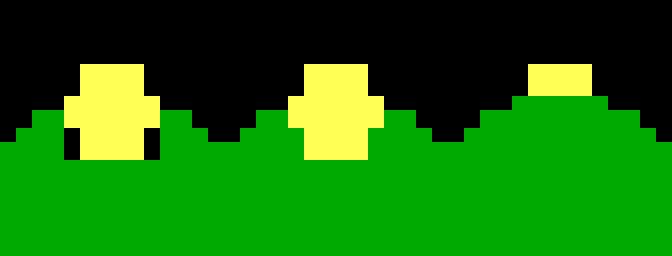
Here a sun of yellow █, six cells by three, its corners spaces on black, is pasted over the top of three hills on the bottom layer: Normal, Transparent and Under, left to right. Normal cuts the hill with the sun's black corners; Transparent lands only the round sun; Under puts the sun behind the hill:
The Under paste while it still floats, at 2× zoom. The marquee shows the whole block; the canvas shows only the cells that will land:
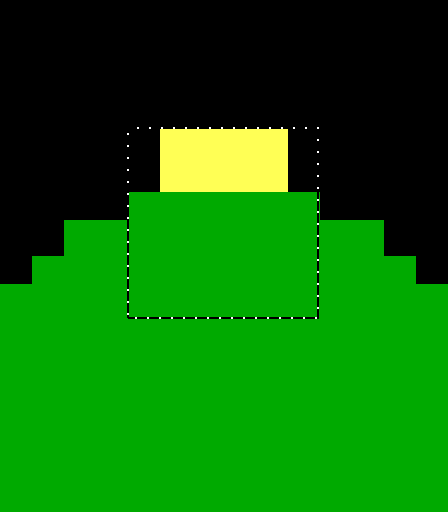
A block lifted or copied from a Pixels layer holds half-block pixels. Pasted onto a Cells layer, it is written as the Pixels layer shows it. A cell with only one of its halves set counts as blank in Transparent mode, so Transparent drops it and leaves the cell under it as it was; Normal and Under land it, the set half over what is there.
Flip and rotate
Flip Horizontally mirrors the block left to right, Flip Vertically top to bottom. Rotate Clockwise and Rotate Counterclockwise turn it a quarter turn.
With a float up, they change the float and keep its top left corner where it is; nothing lands until you put it down. With no float, they change the selected cells in place as one edit, in Normal mode whatever the setting:
- a flip keeps the rectangle;
- a turn keeps the top left corner and swaps the width and the height. Cells of the old rectangle the new one doesn't cover are cleared to blank, cells turned past the canvas edge are lost, and the selection is cut to the canvas.
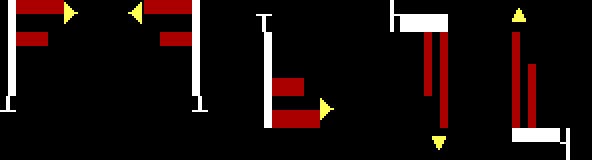
Only the glyphs change; each cell keeps its colours. A red ▀ flipped vertically is a red ▄, so the red moves to the bottom half. A cell is twice as tall as it is wide, so a turned block looks stretched one way and squashed the other.
A flag five cells wide and four rows tall, then copies of it flipped and turned. Left to right: as drawn, Flip Horizontally, Flip Vertically, Rotate Clockwise, Rotate Counterclockwise:
What happens to each glyph
A glyph with a direction changes with the block. The box-drawing characters, all forty single and double corners, tees, lines and crosses, flip and turn by their arms, so a frame stays a frame. The others:
| Action | Glyph changes |
|---|---|
| Flip Horizontally | ▌ ↔ ▐, / ↔ \, ( ↔ ), [ ↔ ], { ↔ }, < ↔ >, ≤ ↔ ≥, ► ↔ ◄, → ↔ ←, ⌐ ↔ ¬, « ↔ » |
| Flip Vertically | ▀ ↔ ▄, / ↔ \, ▲ ↔ ▼, ↑ ↔ ↓, ⌠ ↔ ⌡ |
| Rotate Clockwise | ▀ → ▐ → ▄ → ▌ → ▀; ▲ → ► → ▼ → ◄ → ▲; ↑ → → → ↓ → ← → ↑; ¬ → ⌡ → ⌐ → ⌠ → ¬; ( → [ → ) → ] → (; < → « → > → » → <; { → ≤ → } → ≥ → {; / ↔ \, - ↔ |, ↔ ↔ ↕ |
| Rotate Counterclockwise | Each clockwise chain backwards: ▀ → ▌ → ▄ → ▐ → ▀, and so on |
Every other glyph is kept as it is: letters, digits, the shades ░ ▒ ▓ and the full block █. Two of the same flip give the glyph back, a half turn is the same as both flips, and four turns give it back. The same change of the cells reached two ways can give two glyphs: ( turned clockwise and then flipped horizontally is ], but flipped horizontally and then turned counterclockwise, which moves the cells the same way, it is [.
Limits
- The active layer only. A selection reads and writes one layer. To move a part of the picture that is on two layers, move it on each.
- Wide characters. A selection holding a wide character, one that takes two cells, can't be turned; Blockwright says Can't rotate a selection that holds a wide character. It can be flipped.
- The canvas edge. A float keeps at least one cell on the canvas, and the cells off the canvas are lost when it lands. A turn in place loses the cells it carries past the edge.
- The system clipboard. Cells don't go to it or come from it.
- Mirror mode. With Edit > Mirror Mode on (Ctrl+M) and the symmetry set to Mirror X, putting a float down, a flip or turn in place, and a clear are mirrored across the canvas too. Mirror Y, Mirror X and Y and Radial aren't applied to them (Mirror mode and symmetry).
- Layers that refuse cells. A float the layer can't hold doesn't land at all (A float that can't land). A layer with its alpha locked keeps its transparent cells transparent, as it does from any tool (Layers). When the layer refuses a move outright, the cells stay where they were and the selection goes back round them.
- Undo. Undo restores cells, not the selection.
Describes Blockwright 0.1.0 (12ee9ef).